Line Text Generator - Copy and Paste Lines Fancy Text Fonts
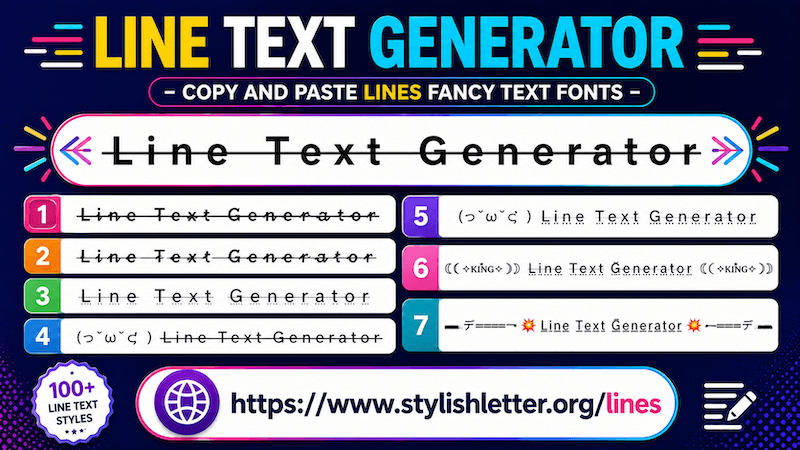
Lines Text is a fancy text generator that adds decorative lines to your normal text and makes it look more
unique. These styles can add lines in different positions, such as in the middle of letters, below the text,
double
underlines, arrow style underlines, and many other line effects.
But it does not stop there. It also changes your text into different font styles, which together creates a more
stylish and creative look.
Here, you will find a collection of lines fancy text styles. You can generate and copy more than 100+
lines fancy text styles for daily use.
How to Copy and Paste Lines Fancy Text?
It is quite easy to do. First, click on the input bar and type your message, name, nickname, or anything you
want. As you type it, this generates lines fancy text styles for you.
Now simply click on any style that you like. As you click it, you will see a "Copied"
notification. That means your text has been copied successfully.
Now you can paste and share it anywhere you want.
How to Use Regenerate It Button?
It is quite simple. First, generate your fancy text. Then scroll down until you reach the Decorative
Lines section.
Before the Decorative Lines title, you will notice a symbol.
The same symbol is also available as a button at the bottom of your screen beside the bulb icon.
When you click it, it refreshes and generates new Decorative Lines fancy text styles. Click again to generate
more styles. In this way, you can continue exploring many different line designs without repeatedly clicking the
more button.
If you want to copy one, simply click it. as you click, you will see the "Copied" notification and then you can
share it anywhere.
Why Should We Use Decoration Functions?
If you want more symbols, emojis, and text arts in fancy text, then the decoration feature can be very useful
for you.
For example, you may generate a lines fancy text style and already like the line effect, but want additional
symbols or decoration on it.
You could continue generating more styles, but sometimes it becomes difficult to find exactly what you want.
That is where the decoration feature becomes useful.
Simply choose the style you like and click the Deco button on the right side.
A new pop-up called Flourish Stylish Letter will open. There, your selected fancy text will
appear with additional symbols, emojis, kaomojis, and decorative text art.
This allows you to see the same text style with many different decoration combinations. If you find one you
like, simply click it and it will be copied.
You will also find a regenerate it button at the bottom in pop-up screen. Clicking it refreshes and generates
more decorated versions.
Not only that, inside Select Option, you will find different decoration categories.
- Kawaii Flourish – adds Japanese-style emoticons and playful decoration.
- Cute Flourish – adds cute emojis, symbols, hearts, and kaomojis.
- Gamer Flourish – adds gaming-inspired text art and decorative symbols.
These options help you customize your text more easily and create messages, names, or nicknames exactly the way
you want. It is one of the advanced features available here and becomes very powerful once you learn how to use
it.