Glitch text generator - Copy and Paste Ugly, or Zalgo Text Art
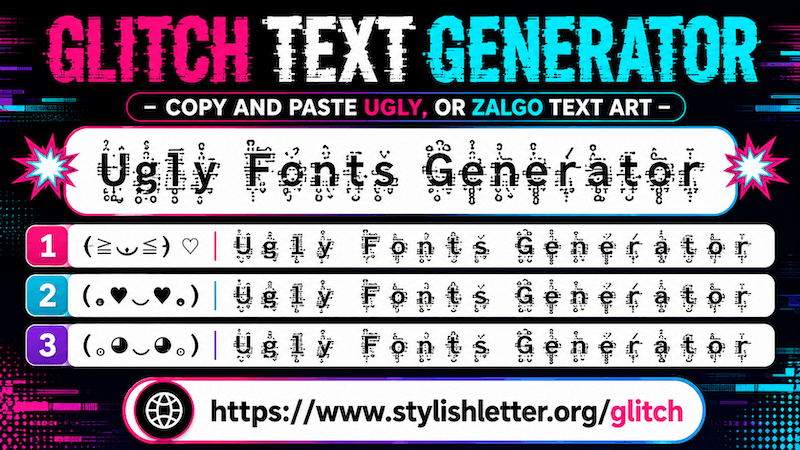
Ugly or Glitch text, also known as Zalgo text, is a fancy text style that truly lives up to its name.
This text style creates a broken, distorted, or glitched appearance that looks like a malfunctioning
font. That is why it is commonly called Glitch text or Zalgo text.
Some people also call it ugly text because the letters appear distorted and messy in a unique way.
But that unusual appearance is exactly what makes this fancy text style interesting and different.
How to Use Glitch (ugly) Text Generator?
It is really easy to use. Here, you will find many functions that help you create and customize ugly (glitch)
fancy text exactly the
way you want.
You will find three main options: Top, Middle, and
Bottom. These options control where the glitch effects appear on your text.
For example, if you uncheck all three options, your text will become normal. Whatever you type
will appear exactly the same without any glitch effects.
If you select Top, symbols and effects will appear above your text.
If you select Middle, the effects will appear through the middle of the text.
If you select Bottom, symbols will appear below the text.
If you select all three options together, your text will include effects at the top, middle,
and bottom at the same time, creating a stronger ugly or glitch effect.
You will also find additional controls like Max Height. This lets you control
how intense or tall the effects appear. You can increase or decrease the value based on the style
you want to create.
There is also a Height Randomisation option. You can adjust it to create more
random and unique effects. These settings help you create many different variations and make your
ugly fancy text look more creative and cool.
These customization options allow you to create ugly fancy text exactly how you want.
How to Copy Paste Ugly (Glitch) Fancy Text?
It is quite simple. First, type your text and customize it using the available options. Once you find a style
you like,
simply click on it. After clicking, you will see a notification saying "Copied". That means
your text
has been copied successfully.
Now you can paste and share it anywhere you want.
How to Use Deco Function Here?
It is quite simple. After generating your ugly fancy text, look at the right side where you will see the
Deco button. Click it and you will find many decorated versions of your text.
Why Should We Use Deco Function?
This feature is especially useful because glitch text normally generates only one main style.
That means you have fewer options to choose from.
The Deco function solves this by decorating your ugly fancy text in many different ways.
By default, it adds symbols, emojis, kaomojis, and other decorative elements. You can scroll through the
available styles and explore many combinations. If you click
Regenerate It, button. You will get even more unique styles. This way, you can generate
more than 100+ styles.
You can also use the Select option and switch between categories like
Kawaii, Cool, Gamers, Floris,
and others.
Every category provides different decorations and helps make your ugly fancy text look more
attractive while giving you more options to copy, paste, and share.
That is why this option is important for this page—it helps you discover many ugly fancy text
styles and choose the one you actually like.
Can I Make Ugly Fancy Text Look Bigger and Smaller?
Yes, you can do that. It works the same way as other fancy text styles. Just find the Font Size Slider below the
input bar.
Slide it to the right side to make the text look bigger and slide it to the left side to make it smaller.
Remember, this size adjustment is only for preview purposes. The actual size may depend on the
device or platform where the text is viewed.